Getting Started Package
Everything you need to sign up, step-by-step.
The complete walk-through — prerequisites, referral link, exchange, ecosystem access, and your first EX-AI Bot deposit. Follow it top to bottom and you’ll be running in under an hour.
Sign up using the referral link from the partner who sent you to this page.
Your partner should have given you a personal link — please use that to create your Aurum Foundation account so you stay connected to the person supporting you.
If you do not have a referral link and have ended up at this page, please email me for a link to sign up to Aurum.
Independent Partner · Not Financial Advice — this page is not operated by Aurum Foundation. Informational only. Read full disclosure
This website is not operated by Aurum Foundation. It is an independent partner page created for informational and entertainment purposes only.
- Not made or endorsed by Aurum Foundation. Views expressed do not reflect the company.
- The independent partner is not responsible for any information that does not fully reflect what the company offers or portrays.
- All financial decisions are your own. Nothing here is financial advice.
- Once registered, all business is conducted directly with Aurum Foundation — not the independent partner.
Before you start — set these up first
-
1
A VPN on phone and computer
Must be set to any country other than the US or Canada when accessing the Aurum platform — e.g. Mexico. We recommend a paid plan from NordVPN, ExpressVPN, or Proton VPN. If you ever see an “IP Banned” message, watch this short explanation.
-
2
A Telegram account
Create one if you don’t have it — download Telegram for your phone or computer. Used to link real-time notifications from your Aurum back office once you’re signed in.
-
3
A 2FA authenticator app
Open the App Store on your iPhone or the Play Store on your Android phone and install one of these: Google Authenticator, 2FAS, Authy, or Microsoft Authenticator. You’ll connect it during sign-up.
Create your account & fund your first deposit
Open your referral link & create your account
Turn on your VPN and set it to a country outside the US or Canada. Click the referral link — the Aurum welcome screen opens. Existing users sign in; new users click Sign Up to reach the Create Account form.
Your Partner Code auto-fills from the link, so your inviter stays attached to your account.
No link? Go to backoffice.aurum.foundation, click Sign Up, and enter your invite code manually.
To get the +1 country code, select Crypto Nation or U.S. and Outlying Minor Islands as your country. You’ll need to do this on 2 separate screens during sign-up.
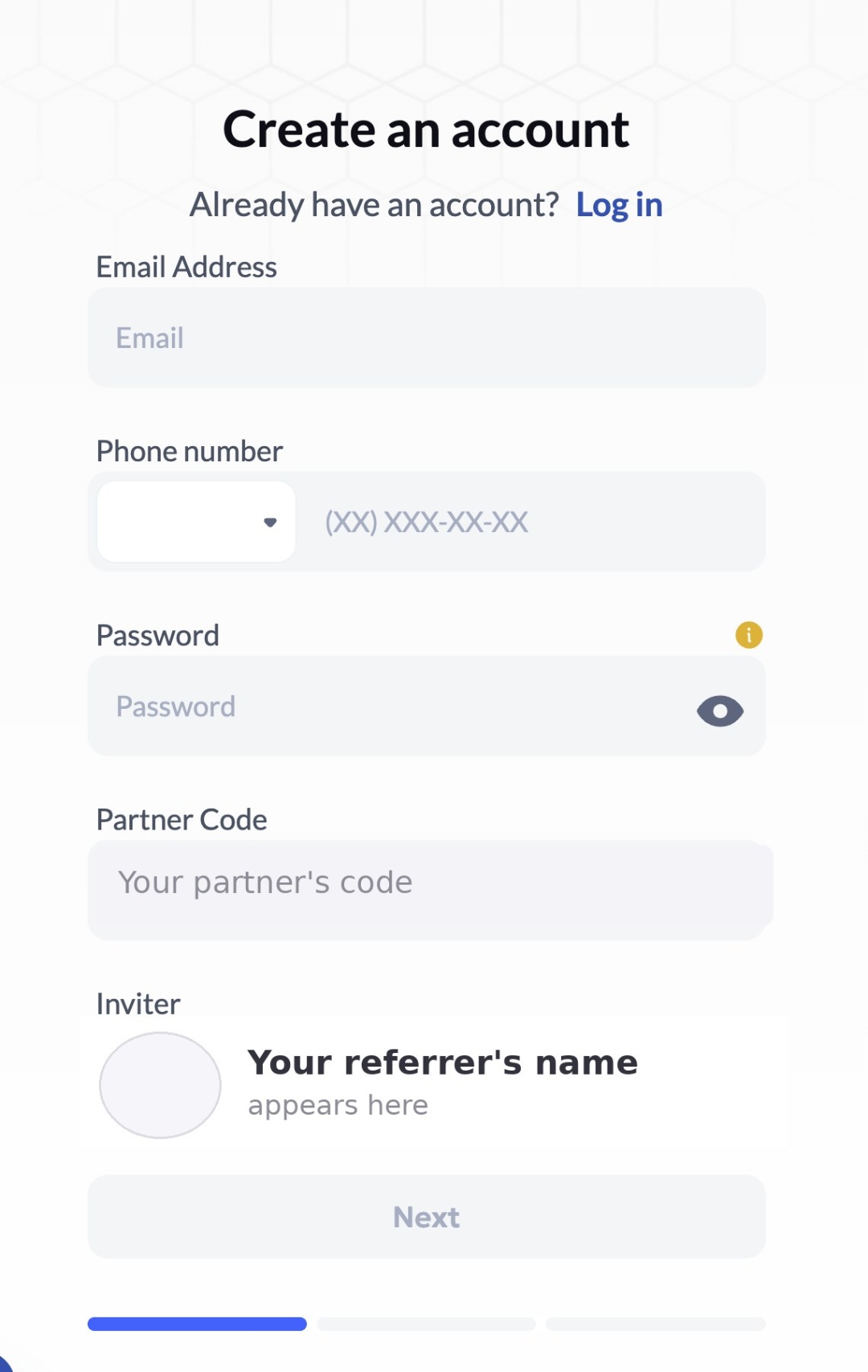
- Email address: provide a valid email in the designated field.
- Phone number: select your country code and enter your phone number.
- Password: create a strong password to secure your account.
- Invite code:
- You must enter the invite code from the partner who invited you.
- This code is required to complete your registration.
- Click “Continue”: once everything’s filled in, click Continue to proceed with account creation.
Complete your profile
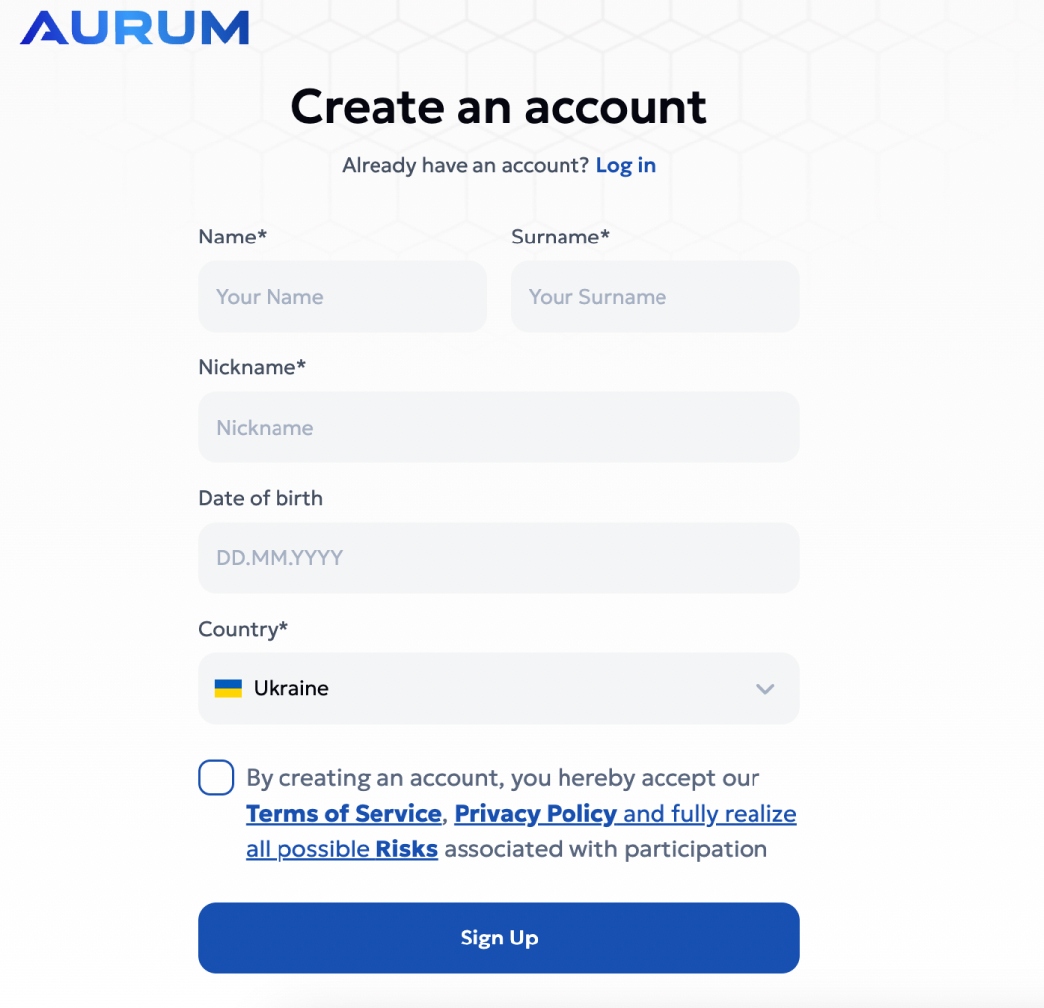
- Name & Surname: enter your first name and last name in the respective fields.
- Nickname: choose a unique nickname — this becomes your display name on the platform.
- Date of birth: enter your date of birth in the format DD.MM.YYYY.
- Country: select your country from the dropdown list. Canada & USA: pick Crypto Nation or U.S. Minor Outlying Islands to get a valid +1 option — same tip as Step 1.
- Terms & Conditions:
- Check the box to confirm you accept the Terms of Service, Privacy Policy, and acknowledge all associated risks.
- Sign Up: once all fields are filled, click the Sign Up button to complete registration.
Confirm your email
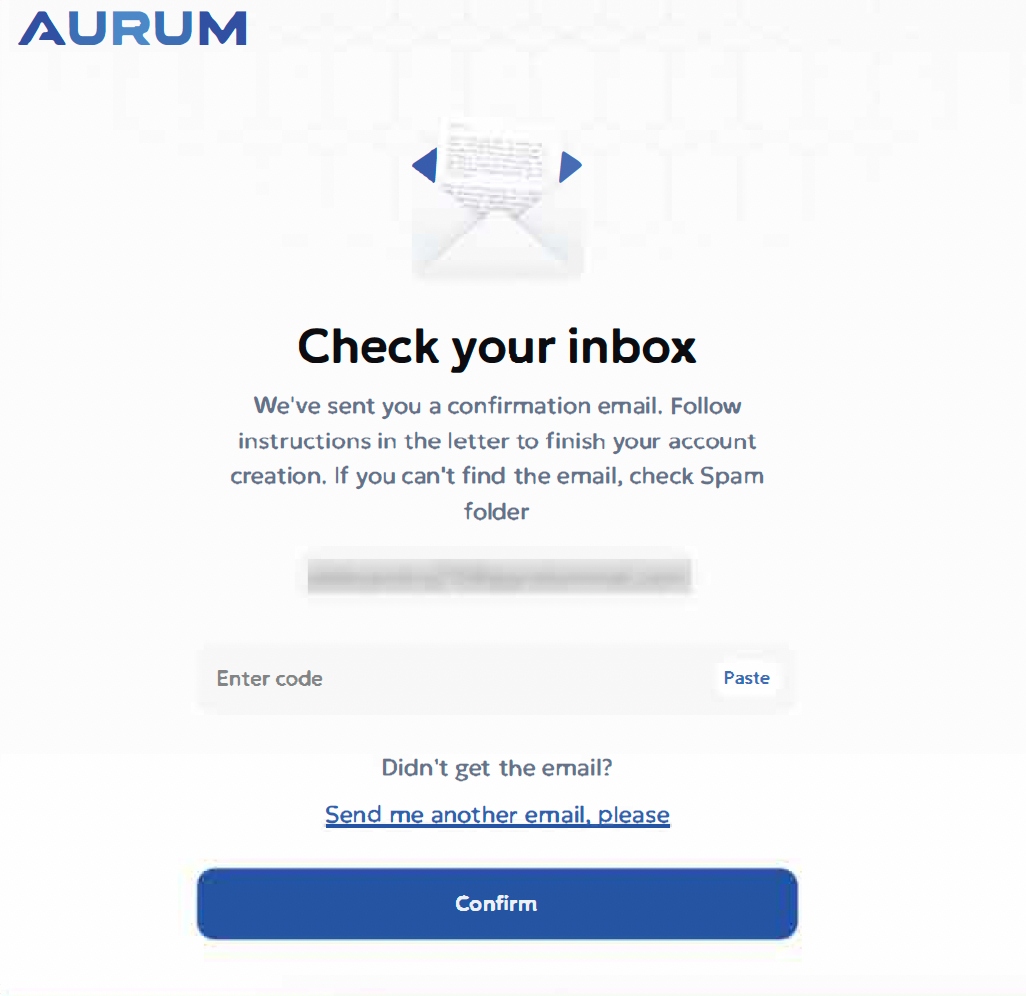
- Check your inbox: after registering you’ll get a confirmation email from Aurum. Check Spam or Junk if it doesn’t appear in your main inbox.
- Get the code: the email contains a confirmation code — copy it.
- Paste the code: go back to the Aurum registration page and paste the code into the Enter code field.
- Click “Confirm”: click the Confirm button to complete your account setup.
Didn’t receive the email? Click “Send me another email, please” on that screen to request a new one.
Connect your authenticator (2FA)
A pop-up will prompt you to link 2FA — complete this immediately. Tap the eye icon to reveal your recovery key, then scan the QR code with your authenticator app (Google Authenticator, 2FAS, Authy, or Microsoft Authenticator). Verify the generated code and you’re set.
Take a screenshot and write it down before continuing. Without it, a lost or wiped phone means a lengthy account-recovery process.
Inside your profile you’ll also find a Security section where you can review and manage your 2FA device at any time.
Sign up for an exchange and buy crypto
You’ll fund Aurum with stablecoins, so open an exchange account and convert your local currency into the right stablecoin for your country:
- Canada Buy USDC (or USDT on TRON / BNB Chain) via NDAX, Newton, or Kraken.
- USA Buy USDT or USDC via Kraken or another regulated US exchange.
- Everywhere else Buy USDT on TRON (TRC20) or BNB Chain — fastest to arrive, lowest fees.
Chain guidance: TRON and BNB Chain arrive quickest with the lowest fees — Ethereum can lag and cost more in gas. USDT on TRC20 is the default recommendation; USDC on BNB Chain / Ethereum / Polygon works too.
Once you have stablecoins in your exchange wallet, you’re ready to top up Aurum.
Top up your Aurum account
From your Aurum dashboard, click Top-up Account under Main Balance to open the top-up modal.
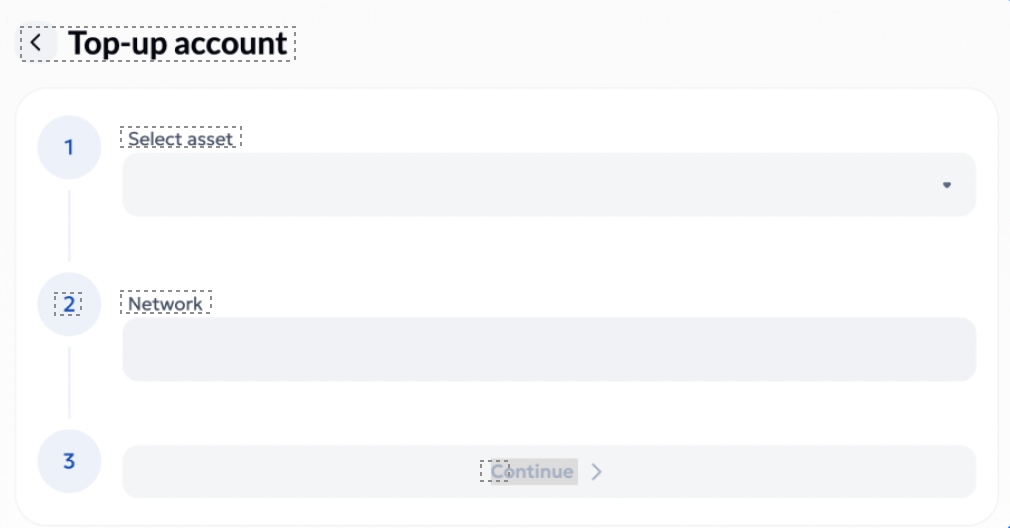
- Select asset: choose the stablecoin you’re depositing (USDC or USDT).
- Network: pick the network that matches your exchange withdrawal — e.g. Tron TRC20 for USDT.
- Continue: click Continue to generate your deposit address.
Aurum will display a wallet address and QR code valid for a limited time. Send your stablecoins to that address from your exchange or your personal Web3 non-custodial wallet.
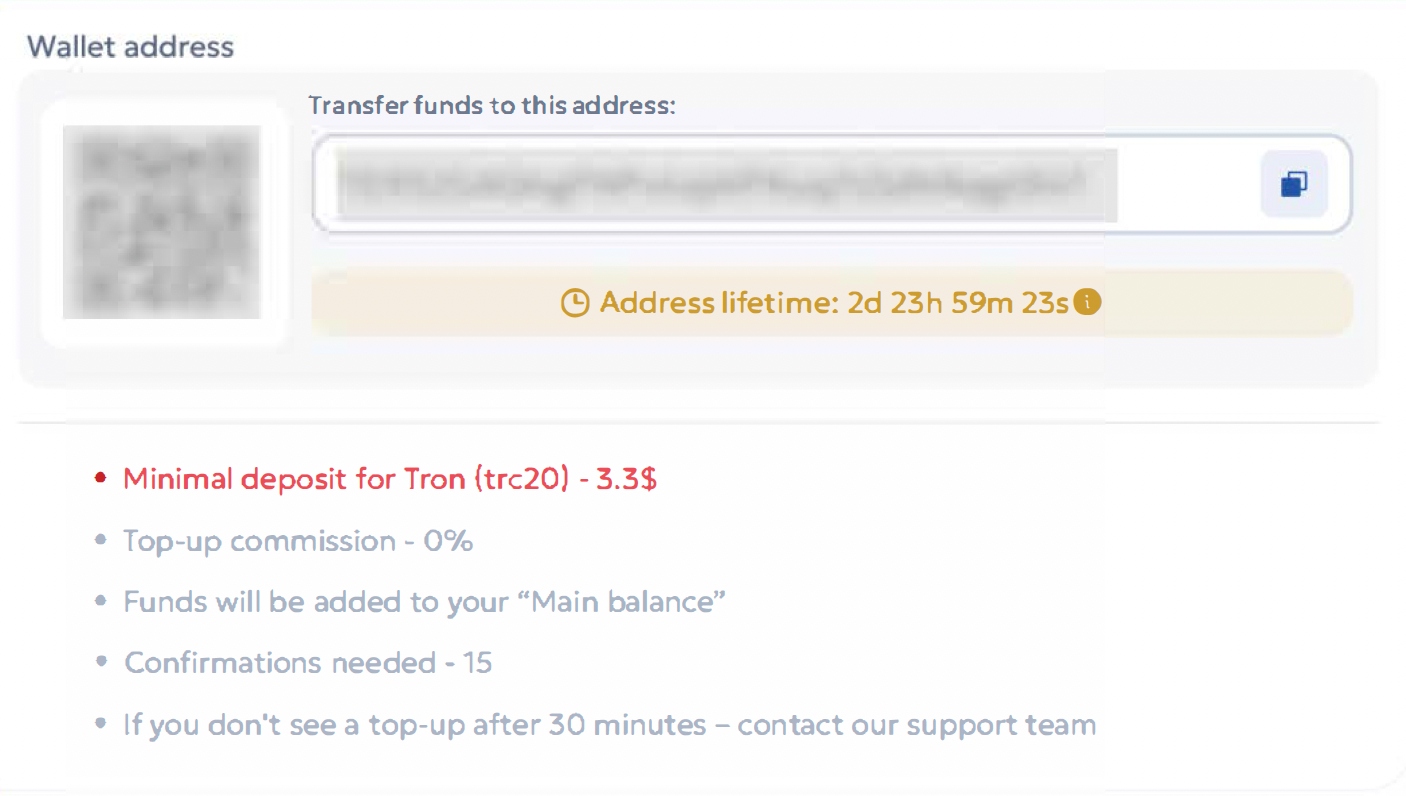
- Minimum deposit (Tron TRC20): 3.3 USDT.
- Top-up commission: 0%.
- Where funds land: your Main balance.
- Confirmations needed: 15 network confirmations.
- If nothing after 30 minutes: contact Aurum support with your transaction hash.
Activate Aurum Ecosystem Access ($19.99/year)
To use any product in the ecosystem — EX-AI Bot, Neyro, Aurum Card, staking — you need an active Aurum Ecosystem subscription. It costs $19.99 USDT/year, deducted from your Main Balance.
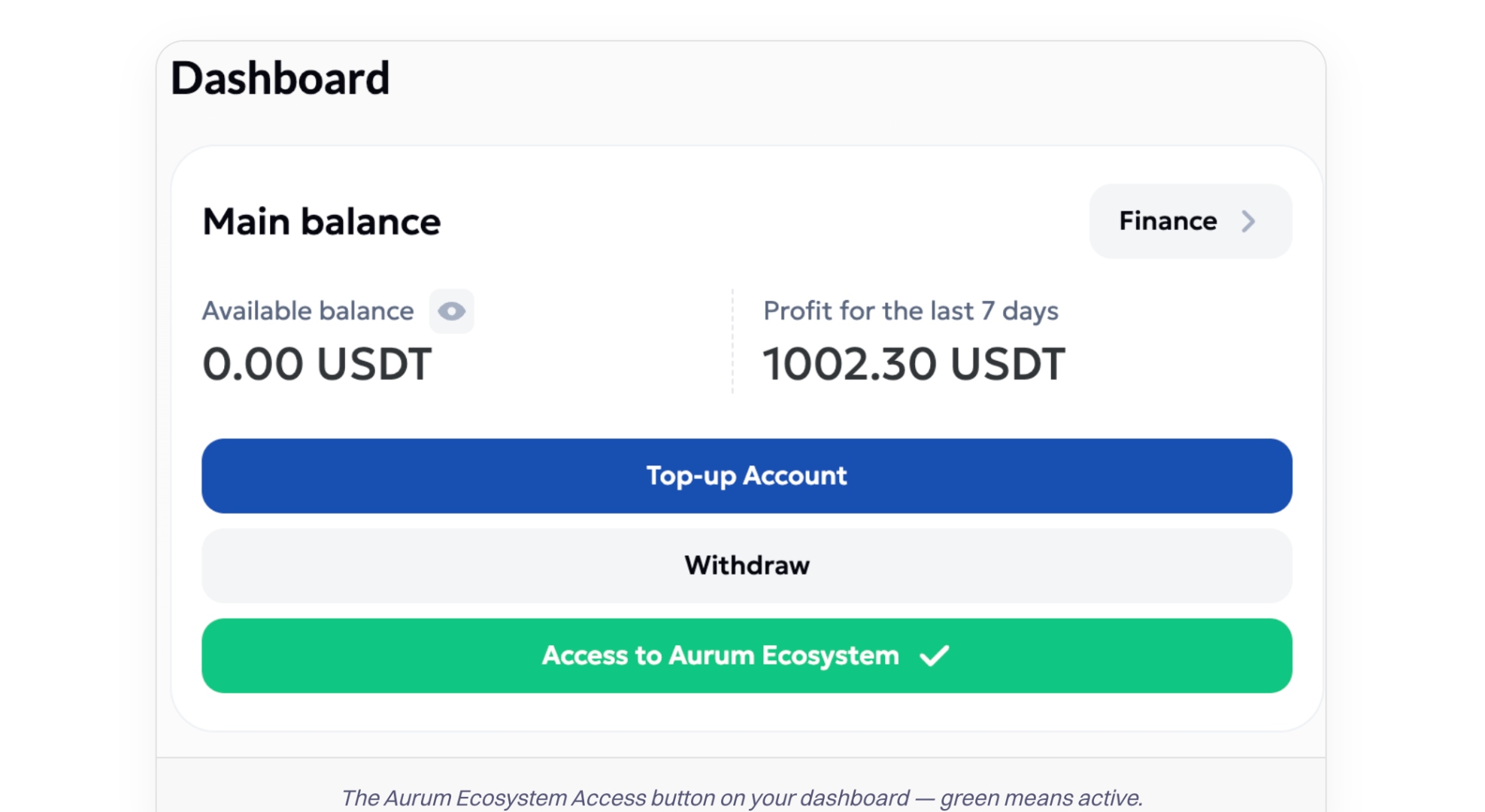
- Open your dashboard: after logging in you land on Main Balance.
- Find the Ecosystem button: below Top-up Account and Withdraw, look for Access to Aurum Ecosystem. Grey means inactive; green with a checkmark means active.
- Click the button: this opens the subscription page shown below.
Review the benefits, confirm the payment method, choose whether to enable auto-renewal, and click Confirm.
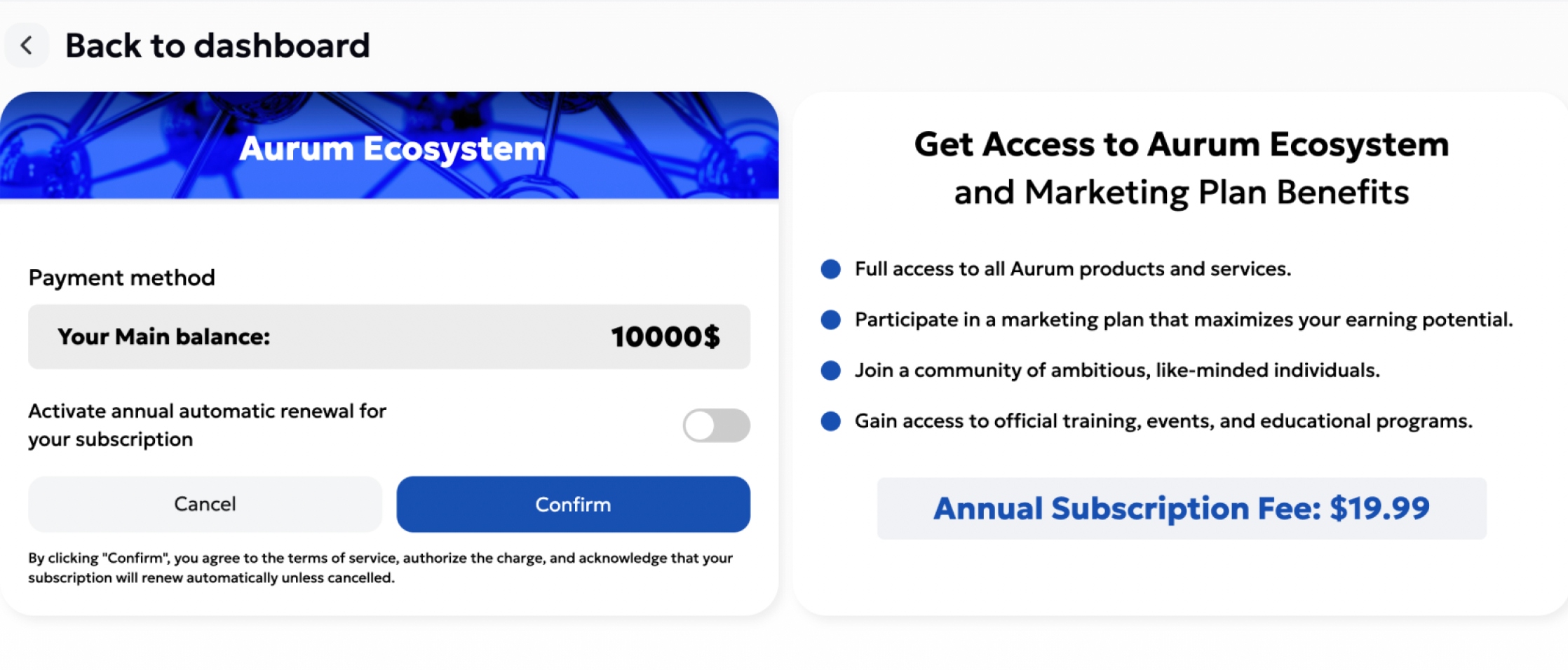
- Payment method: the $19.99 fee is deducted from your Main balance — make sure you have at least that much available.
- Auto-renewal: toggle Activate annual automatic renewal on if you want it to renew every year automatically, or leave it off.
- Review benefits: full access to all Aurum products and services, marketing plan participation, community access, official training and events.
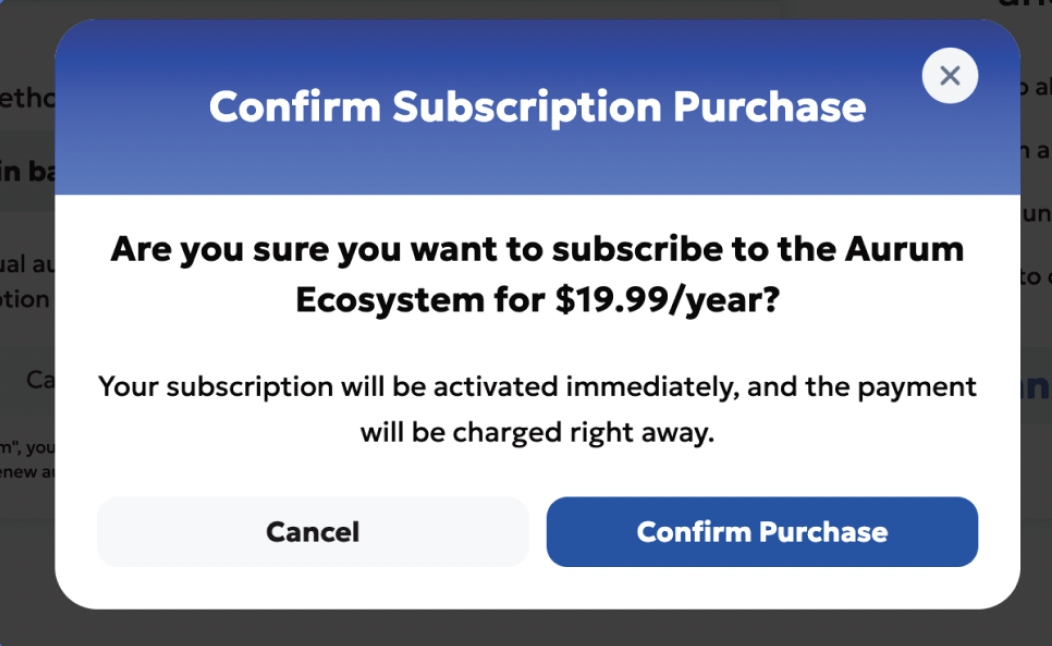
- Confirm: click Confirm, then click Confirm Purchase in the popup that appears. The button on your dashboard turns green and you’re ready to fund EX-AI Bot, Neyro, staking, and the rest of the ecosystem.
Fund the EX-AI Bot — pick your path
There are two ways to load capital into the EX-AI Bot. Pick whichever matches how you already hold your crypto.
Via your Aurum dashboard
Use the USDT you already topped up to your Main Balance (Step 7). Everything happens inside the Aurum interface — easiest if you’re new to crypto.
Directly from your Web3 wallet
Connect a Web3 wallet (MetaMask, Trust, etc.) and deposit straight into the EX-AI Bot contract without routing through Main Balance first.
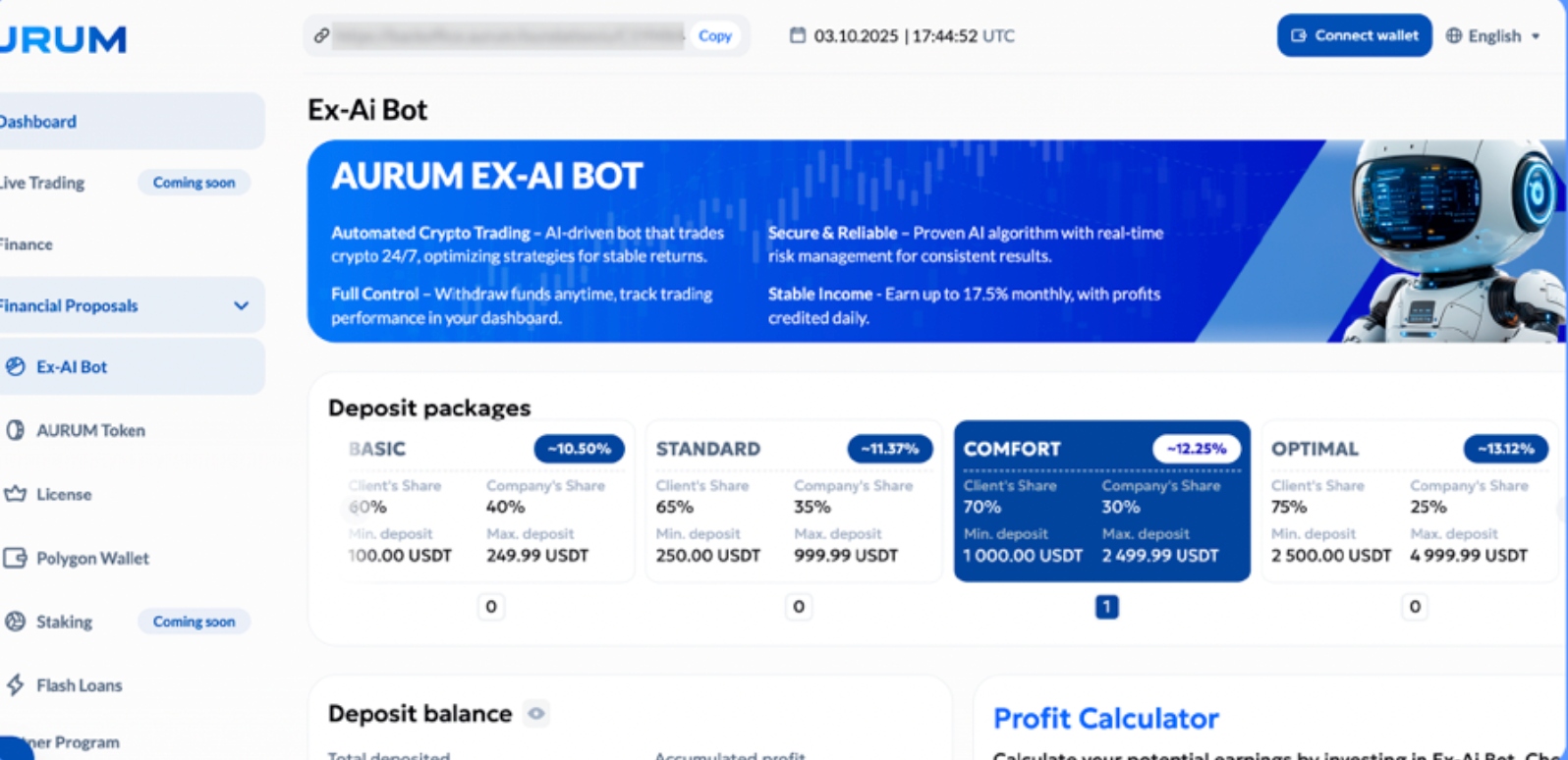
Activate EX-AI Bot via your dashboard
From the left-hand menu, go to Financial Proposals → EX-AI Bot, then click Deposit balance → Create deposit. Select your source of funds (Main balance or Affiliate balance), enter the amount, accept the Rules of Participation, and click Create deposit.
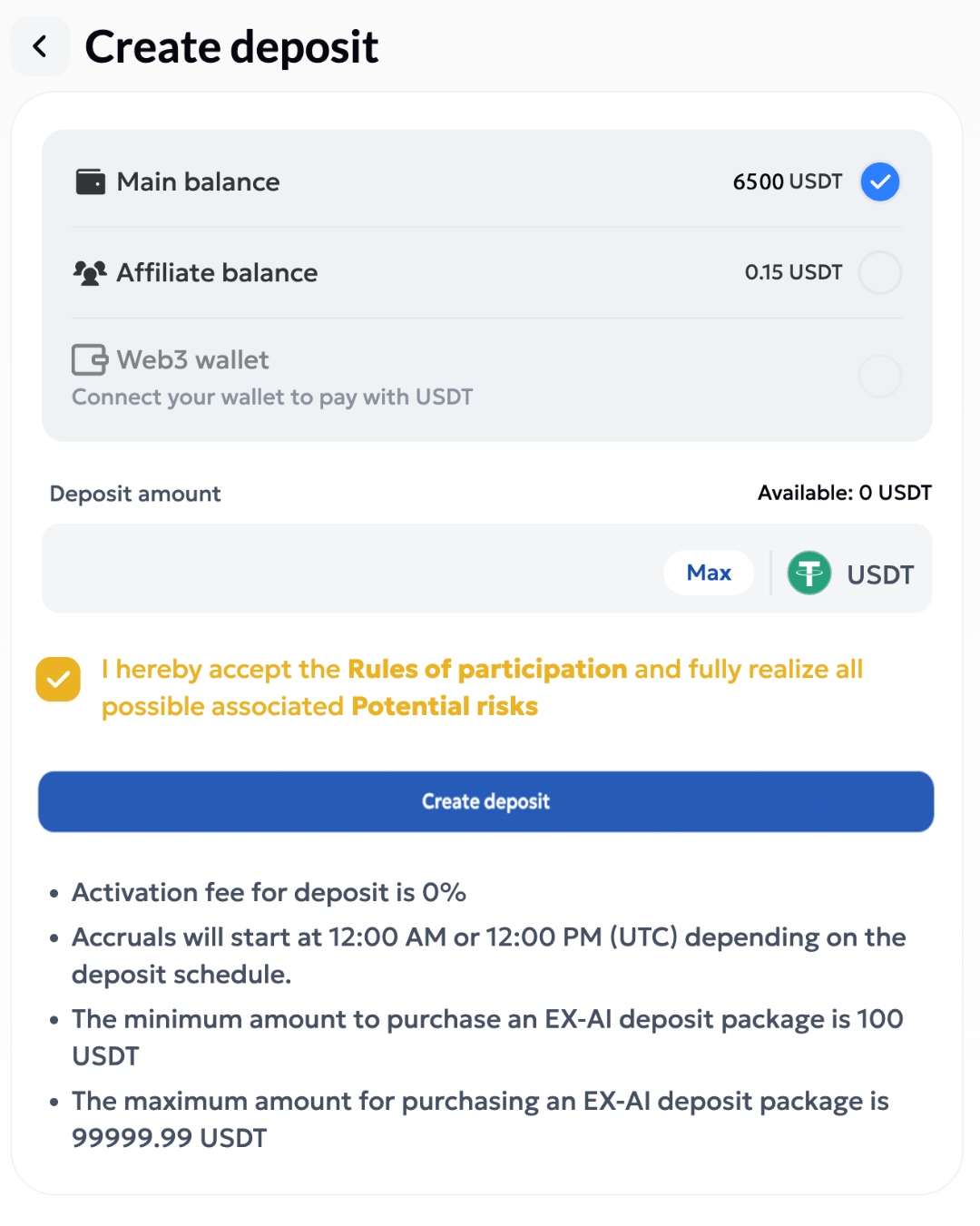
- Go to the Financial Proposals page: navigate to the Financial Proposals section in the left-hand menu and select EX-AI Bot.
- Create a deposit: locate Deposit balance and then select Create deposit.
- Select the source of funds: choose the source of funds by checking either Main balance or Affiliate balance, or select your Web3 wallet by connecting it via the Connect wallet button at the top of the page.
- Enter the amount: enter the amount you wish to deposit. Ensure it meets the minimum and maximum deposit requirements for the selected package.
- Accept the Rules of Participation: review and accept the Rules of Participation by checking the appropriate box.
- Create the deposit: click on the Create deposit button.
- Confirmation: after successfully creating the deposit, a message will appear — “Deposit successfully created! Accruals will start at 12:00 AM or 12:00 PM (UTC) depending on the deposit schedule.”
From here, your deposit balance is put in the queue and starts trading within 24 hours of deposit. Your package activates automatically based on the deposited amount, and as your balance grows you’ll move up to the next package tier as soon as it reaches the minimum listed on that tier.
Minimum 100 USDT per EX-AI deposit · maximum 99,999 USDT per deposit. You can run multiple concurrent deposits if you want to layer strategies. Activation fee is 0%.
Final step: manage your deposit — top up & reinvest toggle
Go back to the EX-AI Bot page (Financial Proposals → EX-AI Bot) and scroll to the bottom. This is where your deposits are listed. The status may show Waiting until your deposit begins trading — that happens within 24 hours of deposit.
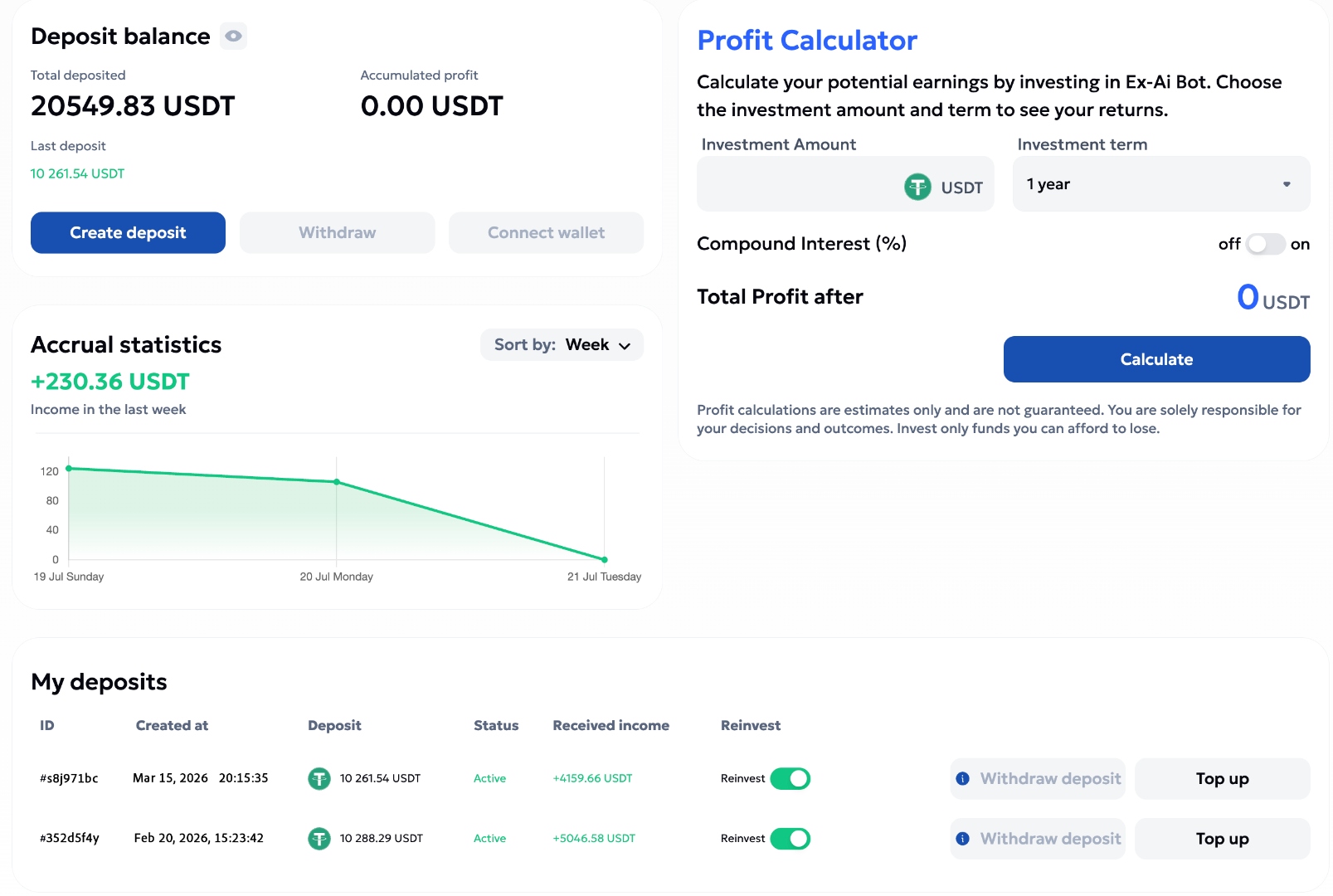
Adding more to an existing deposit
If you wish to add more to your deposit, use the Top up button next to that deposit. Don’t create another Create deposit unless you want multiple deposits running in parallel.
Reinvest toggle — very important
The last thing to set — and this is a very important step — is the Reinvest toggle beside each deposit. It has two settings: Reinvest ON (green) or Reinvest OFF. It defaults to OFF when you first deposit.
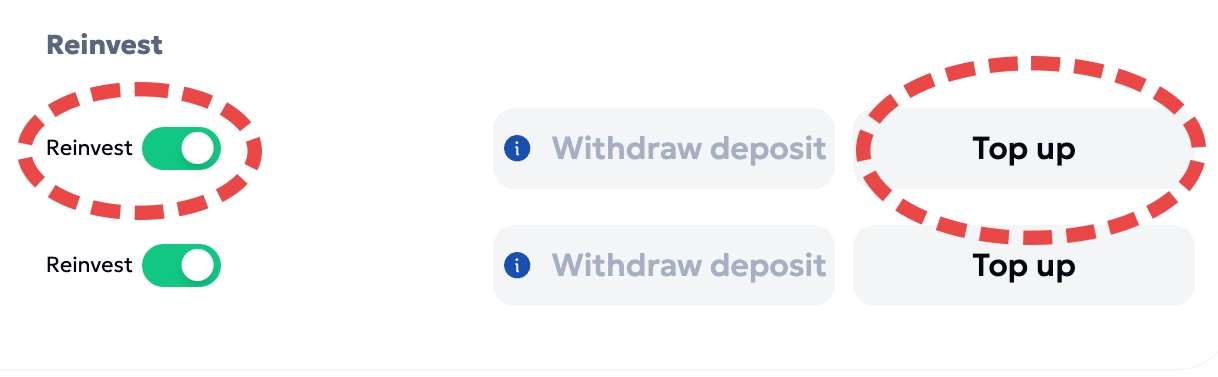
- Reinvest OFF (default — not green): take daily profits from day one. Your daily profit appears under Deposit balance → Accumulated profit, where you can withdraw it to your dashboard, load it to your card, or transfer it wherever you like.
- Reinvest ON (green): your daily profit is compounded back into the deposit. Your balance grows faster and trades at a larger amount every day. Note: profit generated while the toggle is ON is locked and not available for withdrawal until 365 days later.
Principal-withdrawal note: the principal amount of the deposit package is available for withdrawal on the 1st, 10th, and 20th of each month with a withdrawal fee of 35% and is transferred within 7 working days. After one year, there is no withdrawal fee on the principal amount.
Get your Aurum Card
Access the card through the Telegram app (the Google Play app is live; Apple App Store coming in a few months). You'll need at least $250 USDT in your wallet to purchase the card.
It is important to purchase the virtual card first. This deducts the amount from your dashboard balance, and your physical card is then included in that same price — you don't pay twice. Once the virtual card is active, you can order the physical card.
Regulatory note: due to ongoing regulatory and compliance applications that are in progress, Aurum Foundation cannot ship physical cards to addresses in the USA or Canada at this time. Virtual cards work fully for those regions via Apple Pay or Google Wallet.
Access the Aurum Neobank application
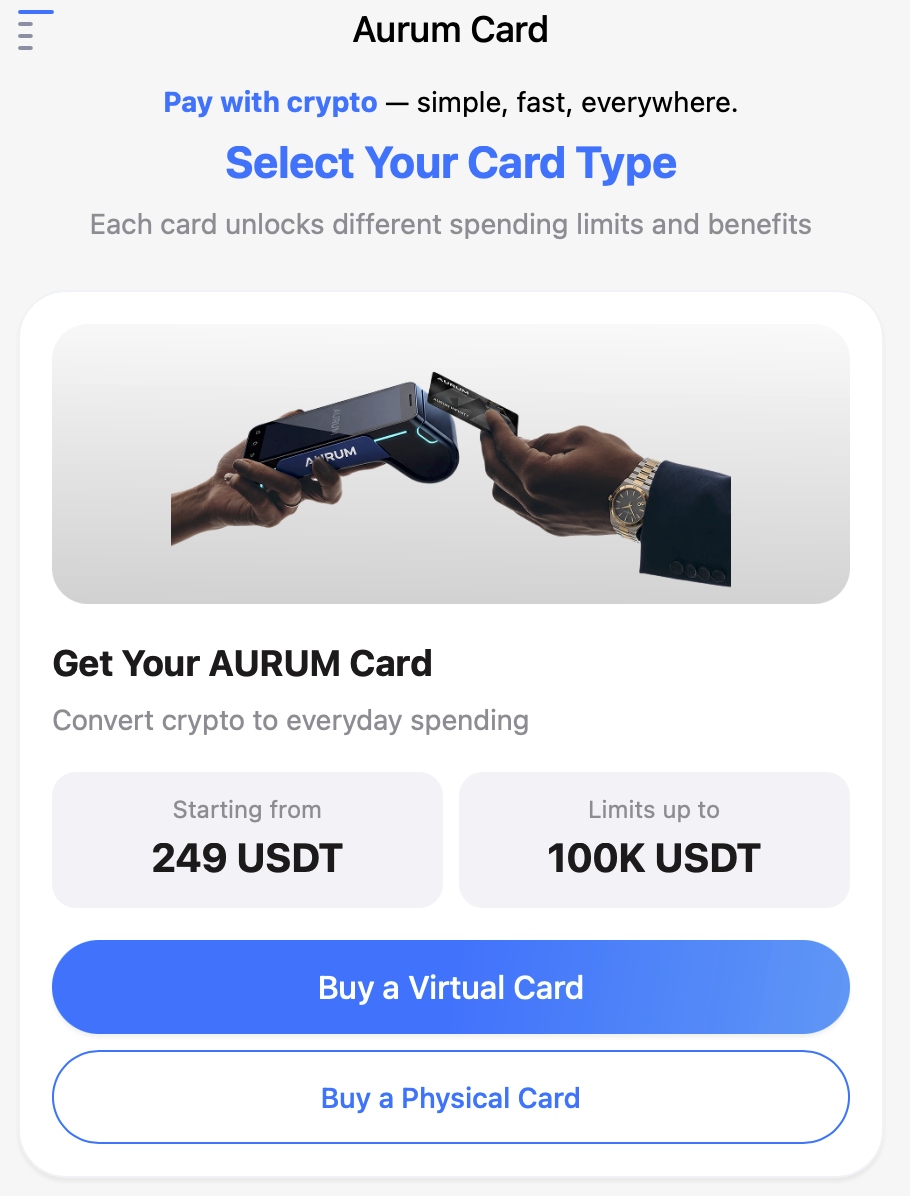
From your Dashboard in the backoffice, scroll down and click “Access to Neobank via Telegram” and press Join Now. In Telegram, tap Open App to start the application.
Click the small credit-card icon to be directed to the section where you order the card.
Order a virtual card
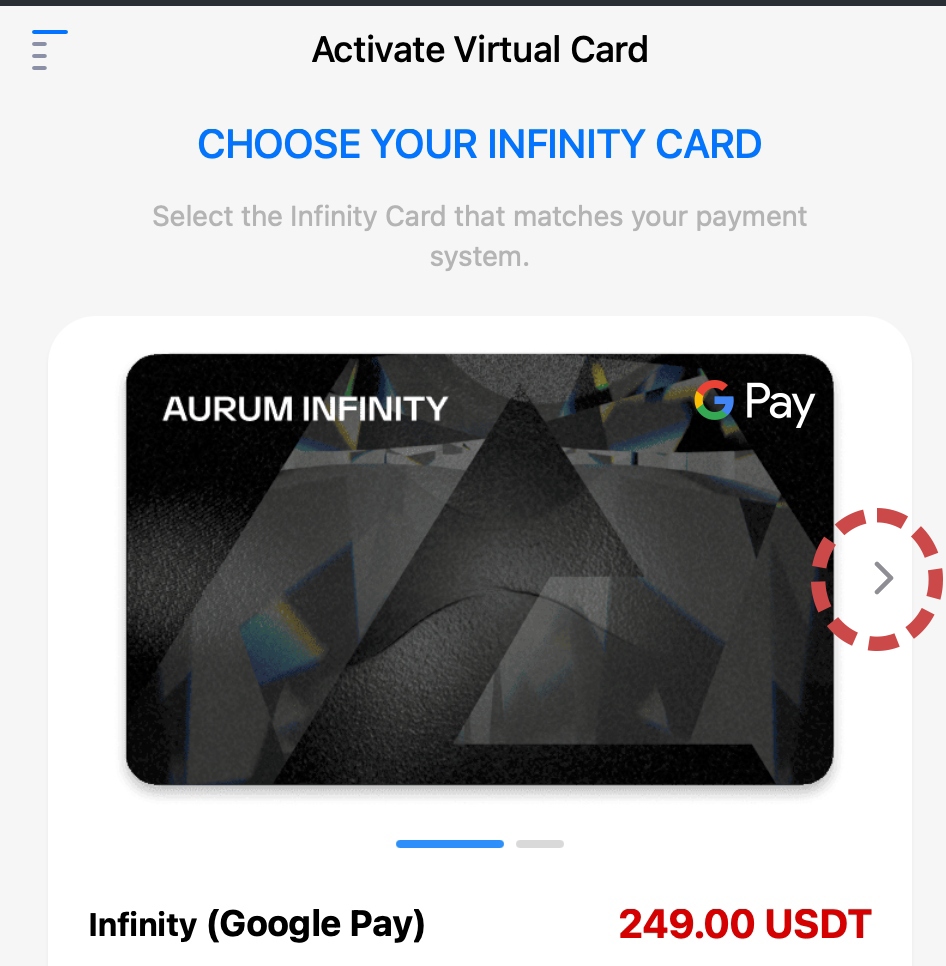
Swipe to select the Infinity Card that matches your payment system — Google Pay or Apple Pay versions are both available.
It will ask for a phone number — if no +1 option is listed, scroll down and choose +1 Crypto Nation, which provides a +1 country code for your US or Canadian number. If you have an alternate country phone number, choose that instead.
Order a physical card
Enter the address of the country (other than USA and Canada) you wish to ship to. Physical cards cannot be shipped to USA and Canada due to ongoing regulatory and compliance applications that are in progress — you can still use your digital/virtual card via tap on your phone.
Top up & spend
Log into your Aurum Neobank Application (on Telegram) and top up from your main Aurum Wallet, then spend. Deposits typically arrive within a few hours. 2.2% loading fee, 0.7% per transaction — lower than most crypto cards.
Physical cards can't be shipped to you currently due to ongoing regulatory and compliance applications that are in progress. Add your virtual card details directly into Apple Pay or Google Wallet — it works perfectly for tap-to-pay purchases. You can also load USDT or USDC from other platforms to your Aurum wallet and straight to your card.
These are the real Aurum links
Questions or something looks off? Email me — I'll confirm the right channel.